
Blog posts and web content
Draft in Markdown, then paste clean HTML into a CMS, a template or an email builder.
Paste or write Markdown and the HTML appears instantly, with a live preview if you want to see how it will look. It handles headings, lists, tables, task lists and code blocks. Copy the result, download it as a file or wrap it as a full page. Everything runs in your browser.
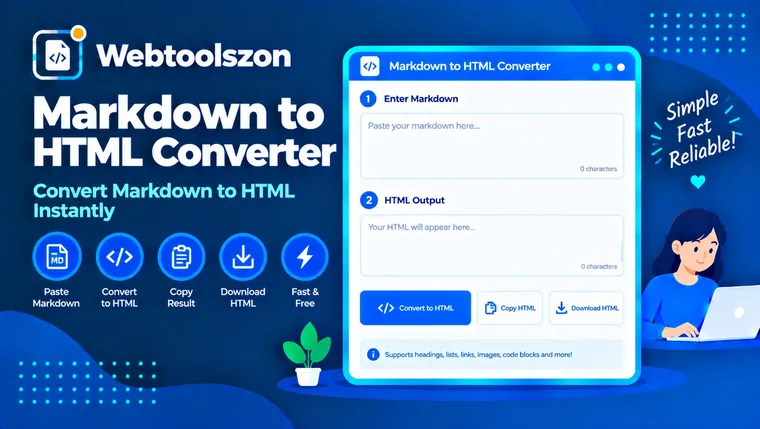
What Markdown is and how it turns into HTML.
Markdown is a lightweight way to write formatted text with ordinary characters. A Markdown to HTML converter turns that text into the HTML tags a web page needs, so you can write quickly and still end up with proper headings, lists, links and tables.
Because Markdown is easy to read even before it is converted, it is popular for documentation, README files, notes, blog drafts and content that moves between tools. This converter gives you the HTML as soon as you type, with an optional preview and a complete page if you need one.
Draft in Markdown, then paste clean HTML into a CMS, a template or an email builder.
Turn README files and notes into HTML you can drop into a help page or an internal site.
Type a few characters and see exactly which HTML tags they produce, side by side.
The converter reads your text block by block. A line starting with one to six # characters becomes a heading, lines starting with a dash or a number become list items, and a line of three or more dashes becomes a horizontal rule. Text inside a pair of triple backticks becomes a code block, and everything that is left is grouped into paragraphs. Inside those blocks, characters such as * and _ create emphasis, and square brackets followed by round brackets create links.
| Markdown | HTML |
|---|---|
# Heading 1 | <h1>Heading 1</h1> |
**bold** and *italic* | <strong>bold</strong> and <em>italic</em> |
[text](https://example.com) | <a href="https://example.com">text</a> |
- item | <ul><li>item</li></ul> |
1. step | <ol><li>step</li></ol> |
`code` | <code>code</code> |
> quote | <blockquote><p>quote</p></blockquote> |
~~gone~~ | <del>gone</del> |
Plain Markdown treats a single new line as a space and starts a new paragraph at a blank line. The converter also understands the GitHub-style extras that most people expect today: tables, task lists, strikethrough and automatic links.
The conversion runs in your browser. Your Markdown is not uploaded, stored or logged, and the preview and the downloaded file are created on your device.
This is a compact converter covering common Markdown and GitHub-style features. It is not a full CommonMark or GitHub engine, so footnotes, emoji codes, math and unusual edge cases are not handled. Raw HTML is passed through unchanged when you allow it, so sanitize untrusted content before publishing.
Markdown is a way of writing formatted text using plain characters, such as # for a heading and ** around a word for bold. John Gruber created it in 2004, and it is now used in documentation, README files, notes and many websites.
Headings, paragraphs, bold, italic, strikethrough, inline code, fenced and indented code blocks, block quotes, ordered and nested lists, task lists, tables with alignment, links, reference links, images, autolinks and horizontal rules.
It follows the common CommonMark rules and adds GitHub-style tables, task lists, strikethrough and automatic links. GitHub's own renderer does more, such as emoji codes, mentions and footnotes, and some unusual edge cases can come out differently.
No. The conversion runs in your browser, and your Markdown never leaves your device.
By default any HTML you type is escaped, and links that start with javascript: or similar are blocked. If you turn on Allow raw HTML it is passed through unchanged, so run content from other people through a proper HTML sanitizer before you publish it.
In Markdown a single new line is treated like a space, and only a blank line starts a new paragraph. To force a line break, end the line with two spaces or a backslash, or turn on the option that turns single line breaks into <br> tags.
Separate the cells with pipes and add a row of dashes under the header, for example | Name | Price | and | --- | --- |. Add a colon on the left, right or both sides of the dashes to align the column left, right or centre.
Turn on Full HTML page. The result is wrapped in a doctype, head and body, with the first level one heading used as the page title.
An id on a heading lets you link straight to that section, for example page.html#installation. With Add heading ids switched on, each heading gets a lowercase id built from its text, and repeated headings get a number added.
The homepage features dozens more free tools that don't require an API key.
No matching question.