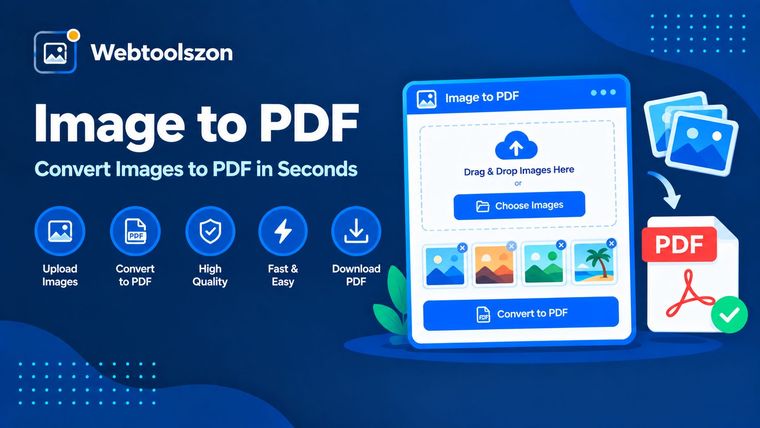
图片转PDF
Combine multiple JPG, PNG or WEBP images into a single downloadable PDF — reorder them however you like.
Your images
Drag & drop images here
or browse your files — JPG, PNG, or WEBP, multiple allowed
PDF settings
Each image becomes one page, in the order shown on the left.
Reviews
Everything you need to know about Image to PDF
How page sizing works, what "fit to image" means, and where combining images into a PDF is useful.
- Add images, reorder them, and download one combined PDF.
- Everything runs locally in your browser — your images are never uploaded.
- Use "Fit to image" if you want each page to exactly match its source image, with no white space.
How to use Image to PDF
- Drag and drop or choose one or more JPG, PNG, or WEBP files.
- Use the up and down arrows to put the images in the order you want them to appear.
- Choose a page size and click "Create PDF" to download the combined file.
Why combine images into a PDF
Scanned pages, receipts, screenshots, or photos of documents are often easier to share and print as a single file rather than a folder of loose images — and a PDF is the format most forms, portals, and email attachments expect.
This tool assembles your images into one PDF entirely in your browser, with each image becoming its own page in whatever order you choose.
Choosing a page size
| Page size | Best for | Why it's worth checking |
|---|---|---|
| A4 Good default | Most of the world, printing at home or office | The standard paper size outside North America. |
| Letter | US and Canada printing | The standard paper size in North America. |
| Fit to image | Photos, screenshots, digital-only use | Each page exactly matches its image — no white borders or cropping. |
Image to PDF without uploading your file
Your images are read directly by JavaScript in your browser, drawn onto a canvas, and assembled into a PDF using a client-side library — all without a network request. Nothing is transmitted to a server, logged, or stored.
Because there's no upload involved, there's no server-side file-size cap; the only practical limit is how many images your browser can comfortably hold in memory at once.
Your images never leave your device. The PDF is assembled entirely client-side, with nothing logged or stored.
Need to shrink the images first? The Image Compressor tool can reduce file sizes before you combine them.
One image per page vs. a photo grid
| Layout | Best for | Trade-off |
|---|---|---|
| One image per page This tool | Documents, scans, forms, receipts | Straightforward and matches how most PDF readers expect content — but uses more pages. |
| Multiple images per page | Photo contact sheets, catalogs | More compact, but needs custom layout logic this tool doesn't offer. |
For documents, receipts, and scans, one image per page is almost always the right choice — it keeps each page's content easy to read and print at full size.
What people use Image to PDF for
- Scanned documentsCombining photos of paper documents into one shareable PDF.
- Receipts & expensesBundling receipt photos into a single file for expense reports.
- Portfolios & samplesTurning a set of photos or artwork into one PDF to send or print.
- Form submissionsMeeting a portal's requirement for a single PDF instead of multiple images.
- PrintingPreparing a photo set for consistent, page-by-page printing.
How This Tool Works
Each image is drawn onto an HTML canvas, normalized to a consistent format, and embedded as a page into a PDF document built with a client-side JavaScript library — all live in your browser, with nothing uploaded, stored, or logged.
Last updated: September 14, 2026.
Was this guide helpful?
More tools in the box
Fourteen more free, no-API-key tools live on the homepage.