
PDF Compressor
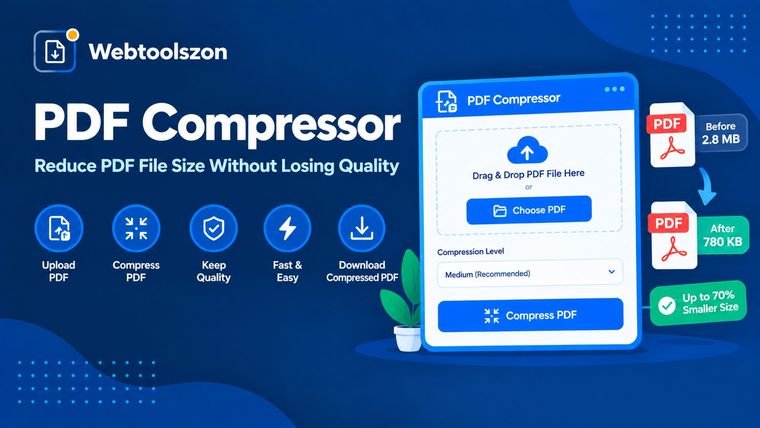
Drop in a PDF, choose a compression level, and shrink the file size right in your browser, then download the result — no upload, no waiting.
Your PDF
Drag & drop a PDF here
or browse your files — PDF only
Compressing page 0 of 0…
Something went wrong reading that PDF. Try a different file.
Compression settings
Reviews
How to compress a PDF
- Drag a PDF into the box above, or click to browse and select one from your device.
- Pick a compression level — Low, Recommended or High — depending on how much size reduction you need.
- Click compress, check the new size and reduction percentage, then download the result.
Why compress a PDF
Large PDFs bounce off email attachment limits, slow down uploads to portals and forms, and take up unnecessary space in shared drives. Compressing a PDF before sending it keeps file sizes manageable without switching to another format.
This tool re-renders each page at a chosen resolution and rebuilds the PDF locally with the Canvas API, so your document is never uploaded to a server — everything happens in your browser tab.
Choosing a compression level
| Level | Best for | Trade-off |
|---|---|---|
| Low | Documents you'll print or zoom into | Smaller size cut, sharpest result |
| Recommended | Email attachments, everyday sharing | Balanced size and clarity |
| High | Large scans, upload size limits | Smallest file, more visible softness |
Getting under a specific size, like 100KB or 1MB
This tool doesn't take a target file size directly, since the achievable size depends on how many pages and images your PDF has. Instead, start with Recommended, check the resulting size, and step up to High if you still need it smaller. Most scanned, image-heavy PDFs will drop well below 1MB per page at the High setting; text-only PDFs are usually already small and compress less dramatically since there are fewer images to re-render.
FAQ
Is this PDF compressor really free, with no sign-up?+
Yes. The PDF compressor runs entirely with JavaScript in your browser, so there is no account, no API key, and no limit on how many PDFs you can compress.
Does my PDF get uploaded anywhere?+
No. Your PDF is processed locally on your device. Nothing is sent to a server, stored, or logged.
How does the compression work?+
Each page is re-rendered at a chosen resolution and re-encoded as an optimized image, then reassembled into a new PDF. This shrinks scanned or image-heavy PDFs the most.
Will compressing reduce quality?+
Some quality loss is expected since pages are re-rendered as images. Higher compression levels shrink the file more but look softer; lower levels keep more detail with a smaller size reduction.
Does this work well on text-based PDFs?+
It works on any PDF, but the size savings are usually largest on scanned documents and image-heavy files. Text-heavy PDFs that are already small may not shrink much, and selectable text becomes a flattened image after compression.
Can I compress a PDF to an exact size, like 100KB or 200KB?+
Not to an exact number, since the result depends on your PDF's content. Choose High compression for the smallest output, check the size shown after compressing, and try a different source file quality if you need to go smaller still.
Is there a file size limit?+
No hard limit is enforced by the tool itself, but very large PDFs (hundreds of pages) will take longer to process since everything runs in your browser rather than on a server.
Tools for PDFs and Images
How This Compressor Works
Each page of your PDF is re-rendered to an in-memory canvas at a resolution set by your chosen compression level, then re-encoded as an optimized JPEG and rebuilt into a new PDF — all using JavaScript in your browser. Nothing is uploaded to a server at any point.
Last updated: August 28, 2026.
More tools in the box
More free, no-API-key tools live on the homepage.
Word Counter
Live word, character, sentence and paragraph counts.
Image Resizer
Resize JPG, PNG and WEBP images by pixels or percent.
Image to PDF
Combine images into a single downloadable PDF.
PDF to Image
Export PDF pages as JPG or PNG images.
Age Calculator
Exact age plus a countdown to your next birthday.