
Resize Your Images for Free — No Software, No Sign-Up
A photo for a profile picture, a signature for a form, a graphic that's just too big to upload — set the pixels and file size you need, and download it. Free, no account, and nothing ever leaves your browser.
Your image
Drag & drop an image here
or browse your files — JPG, PNG, WEBP or GIF
Resize settings
A free image resizer that runs entirely in your browser
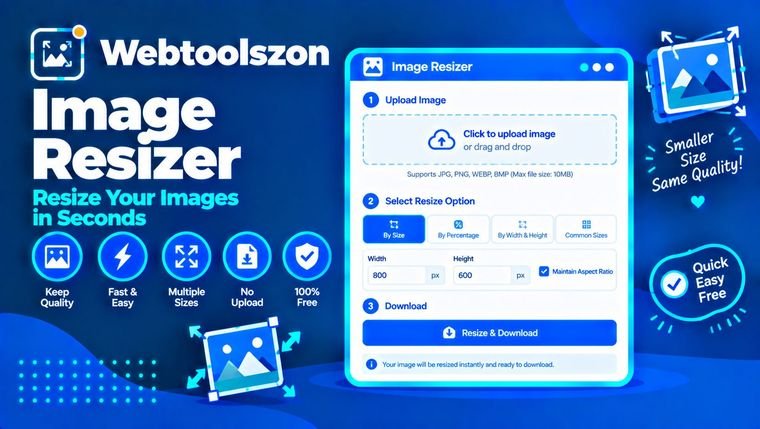
This tool changes the width and height of a picture, whether you're shrinking a large photo for the web or fitting one into a fixed size for a form. It runs entirely on your own device — there's no upload, no account, and nothing saved on a server. You choose a file, adjust the size, and download the result. That also means it works the same way whether you're using a laptop or a phone.
Resizing a signature for exam forms, job applications and KYC
Exam boards, job portals and bank KYC forms usually ask for a signature at an exact pixel size and under a specific file size in KB, and they'll reject anything that doesn't match. Scan or photograph your signature on plain white paper, then set the width and height the form asks for. If those numbers don't match your original's proportions, turn off the aspect-ratio lock so they aren't overridden. Choose JPG as the format, then lower the quality slider gradually while watching the estimated KB size, and stop once it's under the limit.
| Portal type | Typical pixel size | Typical file size |
|---|---|---|
| Government exam forms | 140 × 60 px | 10–20 KB |
| College admission portals | 200 × 80 px | Under 30 KB |
| Bank KYC forms | 150 × 60 px | Under 50 KB |
Requirements aren't standardized, so it's worth checking the exact numbers on the form itself before you upload.
How to resize an image
- Upload an image using the box above.
- Set the width and height, or pick a preset, then choose the output format.
- Check the preview and estimated file size, then download.
Hitting a target file size without it looking compressed
Dimensions and quality are two separate controls here. Shrinking the width and height does most of the work in bringing a file size down; the quality slider fine-tunes the rest. For everyday use — web images, email attachments, social uploads — a quality setting around 80–90% keeps things looking sharp while still cutting the file size noticeably. Push it much lower and you'll start to see it: blocky edges, softer detail, banding in gradients. That trade-off is fine when a strict size limit matters more than appearance, but for anything you want to look clean, staying higher is the better call.
Common sizes worth knowing
A few dimensions come up often enough that they're worth keeping in mind. Most profile pictures look best around 320 × 320 to 512 × 512 pixels, since they're usually cropped into a circle. Instagram Stories and other vertical formats use 1080 × 1920. A passport-style photo printed at 300 DPI works out to roughly 600 × 600 pixels. None of these are fixed rules — always check the specific platform or form — but they're a reasonable starting point.
FAQ
Is this really free, with no sign-up?+
Yes. It runs in your browser with JavaScript, so there's no account and no limit on how many times you use it.
Does my image get uploaded anywhere?+
No. Processing happens locally on your device — nothing is sent to a server or stored.
What formats are supported?+
You can resize JPG, PNG, WEBP and GIF files, and export as JPG, PNG or WEBP.
Will resizing reduce image quality?+
Shrinking an image generally keeps it sharp. For JPG and WEBP you can also adjust a quality slider if file size matters more than appearance.
Can I keep the aspect ratio locked?+
Yes, it's on by default, so changing the width updates the height to match, and vice versa. Turn it off if a form needs different proportions.
How do I get an image under a specific KB limit?+
Set your target dimensions first, then lower the quality slider gradually while watching the estimated size, and stop once it's under the limit.
Does this work on a phone, or do I need an app?+
No app is needed — it works the same way in a phone browser as it does on a desktop.
More Image & Document Tools
How This Resizer Works
Your images are resized live using JavaScript running in your browser — nothing you upload is sent to a server, stored, or logged anywhere.
Last updated: August 30, 2026.
More tools in the box
Ten more free, no-API-key tools live on the homepage.
Word Counter
Live word, character, sentence and paragraph counts.
Case Converter
UPPER, lower, Title, Sentence, camelCase, snake_case.
JSON Formatter
Beautify, minify and validate JSON with error hints.
Password Generator
Strong random passwords with custom rules.
Unit Converter
Length, weight and temperature, converted live.