
Formularer, eksamener og jobportaler
Angiv den nøjagtige størrelse eller det maksimale antal KB, som et ansøgningsskema eller en portal kræver, uden at skulle gætte.
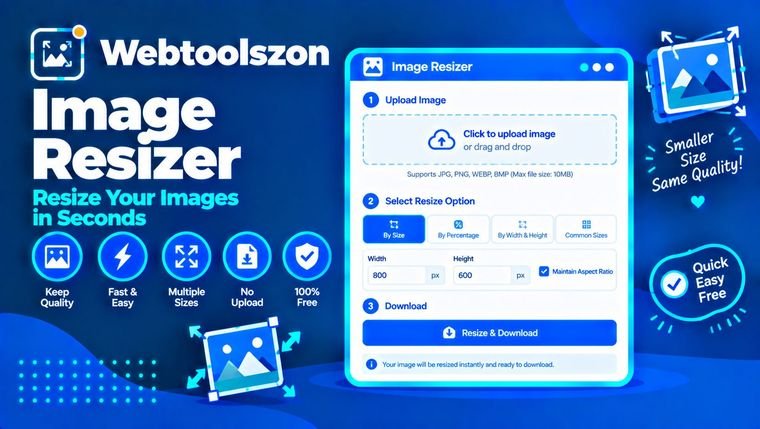
Upload et billede (eller op til tyve), indtast den ønskede størrelse, og download det. Tilpas størrelsen i pixels eller procent, eller komprimer et JPG-billede ned til en bestemt filstørrelse i KB til formularer og uploads. Det hele foregår i din browser, så dine billeder forlader aldrig din enhed.
| Ejendom | Original | Størrelsen er ændret | Ændring |
|---|
Enkle svar på de ting, folk normalt har svært ved.
Det ændrer, hvor mange pixels et billede er i bredden og højden. Jo mindre billedet er, desto mindre er filstørrelsen, og desto bedre passer det til et skema, en side eller en telefonskærm. Jo større billedet er, desto flere pixels har det, men det betyder ikke, at der er flere reelle detaljer.
Denne indstilling udglatter billedet, når det skaleres, så kanterne forbliver skarpe. Du kan indtaste det nøjagtige antal pixels eller vælge en procentdel af originalen, og de samme indstillinger anvendes på alle billeder i batchen.
Angiv den nøjagtige størrelse eller det maksimale antal KB, som et ansøgningsskema eller en portal kræver, uden at skulle gætte.
Et billede på 4000 px, der vises i 800 px, er spild af plads. Skalér det ned, så siden indlæses hurtigere.
Sørg for, at billederne har en størrelse, der gør, at de sendes hurtigt og ikke bliver beskåret på et mærkeligt sted.
I tilstanden »Pixels« kan du indtaste en bredde, en højde eller begge dele. Når »Lås billedformat« er aktiveret, er ét tal nok: det andet beregnes automatisk, så billedet bevarer sine proportioner. Hvis du indtaster begge værdier, mens låsen er aktiveret, tilpasses billedet til den angivne ramme uden at blive strakt. Sluk for låsen, når du har brug for den nøjagtige bredde og højde, selvom det forvrænger billedet.
I procenttilstand giver 50 halvdelen af bredden og halvdelen af højden, hvilket svarer til en fjerdedel af antallet af pixels. Forstørrelse fungerer også, men de nye pixels er beregnet, så store forstørrelser ser uskarpe ud. Start med det største originalbillede, du har.
En ting, der ofte forvirrer folk: pixelstørrelse, opløsning og filstørrelse er ikke det samme. Pixler er bredden og højden. Folk taler ofte om »opløsning«, når de mener disse pixler, selvom det inden for tryk betyder DPI. Filstørrelsen i KB angiver, hvor meget plads filen optager, og den afhænger af pixlerne, formatet og kvalitetsindstillingen.
Indtast den ønskede grænse i feltet »Maks. filstørrelse (KB)« og vælg JPG eller WebP som outputformat. Værktøjet sænker kvaliteten trin for trin, indtil hver fil ligger under den indstillede grænse.
Hvis det ikke er nok at sænke kvaliteten, gør værktøjet også billedet lidt mindre, indtil det passer, og viser dig den nye størrelse. Hvis du starter med en mindre bredde, f.eks. 1200 px i stedet for 4000 px, bevarer du mere af kvaliteten. PNG-filer kan ikke komprimeres på denne måde, så skift først formatet til JPG eller WebP.
De fleste af dem findes i forudindstillingerne, så du kan vælge en af dem i stedet for at skrive den ind.
Dine billeder afkodes og tilpasses i størrelse i din browser ved hjælp af et canvas. Der uploades eller gemmes intet, og de downloadede filer oprettes på din enhed.
Der understøttes kun JPG, PNG og WebP. Den maksimale bredde er begrænset til 8000 pixels på den længste side. Animerede billeder mister deres animation, gennemsigtighed bliver hvid, når du konverterer til JPG, og metadata såsom kameraoplysninger fjernes.
Indsæt dit billede, indtast en ny bredde eller højde, og den tilpassede version vises med den nye størrelse. Tryk på »Download« for at gemme det. Sørg for, at »Bevar billedformat« er aktiveret, så billedet ikke ser udstrakt ud.
Lad indstillingen »Lås billedformat« være aktiveret. Indtast en bredde eller en højde, så beregnes den anden værdi automatisk.
Ja. Skift til »Procent«, og indtast et tal. Hvis du f.eks. indtaster 50, bliver bredden og højden halveret.
Ja. Du kan tilføje op til 20 billeder, og de samme indstillinger anvendes på dem alle. Hvert billede vises med sine nye dimensioner og filstørrelse.
Når låsen er aktiveret, tilpasses billedet til den pågældende størrelse uden at blive strakt. Når låsen er deaktiveret, tilpasses billedet til nøjagtig den pågældende bredde og højde.
Nej. Ved forstørrelse tilføjes der pixels ved at estimere dem, så billedet bliver større, men ikke mere detaljeret, og store forstørrelser ser slørede ud.
Når man formindsker et billede, bevarer det sin skarphed. Kvaliteten falder kun mærkbart, hvis man forstørrer billedet meget eller indstiller en lav kvalitet for JPG eller WebP for at opnå en lille filstørrelse.
At holde det som i originalen gør det nemt. Brug PNG til grafik og gennemsigtighed, og JPG eller WebP til fotos, når du vil have mindre filer.
Indtast tallet i feltet »Maks. filstørrelse (KB)« og vælg JPG eller WebP. Værktøjet sænker kvaliteten trin for trin, indtil hver fil passer. PNG-filer kan ikke komprimeres på denne måde, så skift formatet til JPG eller WebP. Hvis det ikke er nok at sænke kvaliteten, gør værktøjet også billedet mindre, indtil det passer.
Pixels angiver billedets bredde og højde. KB angiver filstørrelsen på din enhed. Færre pixels betyder som regel færre KB, men formatet og kvalitetsindstillingen spiller også en rolle.
Vælg en forudindstilling, f.eks. »Instagram-opslag«, eller indtast både bredde og højde, og vælg »Udfyld og beskær«. Billedet skaleres, så det dækker hele feltet, og de kanter, der ikke passer ind, beskæres.
Ja. Klik på »Download alle (ZIP)« for at hente alle billederne i den nye størrelse i én ZIP-fil. Et enkelt billede downloades direkte.
Ja. Vælg »Udskriv«, indtast bredden og højden i centimeter, millimeter eller tommer, og vælg en DPI-værdi, f.eks. 300. Værktøjet beregner pixelstørrelsen og gemmer DPI-værdien i JPG- og PNG-filer.
Ja. Åbn »Flere indstillinger«, indtast din tekst under »Tekstvandmærke«, og vælg placering, størrelse og gennemsigtighed. Det tilføjes til alle billeder i batchen.
Nej. Alt foregår i din browser, og dine billeder forlader aldrig din enhed.
Hjemmesiden indeholder snesevis af andre gratis værktøjer, der ikke kræver en API-nøgle.
Saml JPG-, PNG- og WebP-billeder i én PDF-fil.
Åbn værktøjOpret favicon-filer i PNG- og ICO-format ud fra et billede eller en tekst.
Åbn værktøjKonverter kg, pund, ounce, stone og ton.
Åbn værktøjMD5-, SHA-1-, SHA-256- og SHA-512-hashværdier for tekst eller filer.
Åbn værktøjDer er ingen spørgsmål, der matcher.
Del dine tanker om dette værktøj med andre besøgende.